Create your first game
A game keeps its designs, datasets, assets, fonts, and exports together.
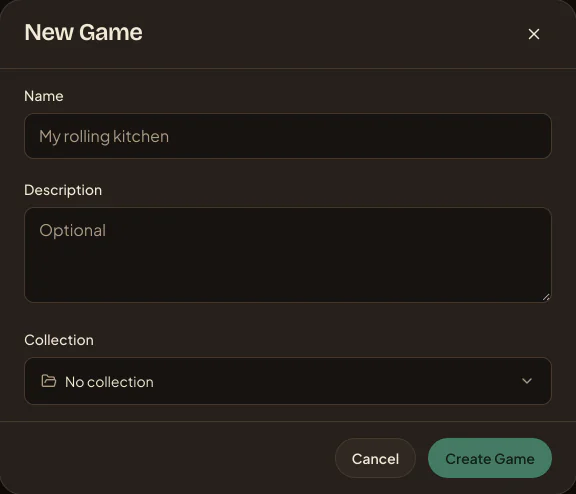
1. Create a blank game
- Open Studio and go to Your games.
- Choose New game, then Blank game.
- Enter a Name. You can rename the game later; the description and collection are optional.
- Choose Create Game. Studio opens the new game in Designs when it is ready.
If Blank game is unavailable, you have reached your plan's active-game limit. Archive a game you are not working on, or compare plans.
2. Choose where to begin
- Open Designs when you know the size and layout of a piece.
- Open Datasets when a card list or spreadsheet already exists.
- Open Assets when you want to organise artwork first.
- Open Scratch Pad when the idea is still loose and spatial.
There is no required order. A design can begin without data, and a dataset can exist before a design uses it.
3. Make a small proof
Create one design and one or two rows of data. Preview those pieces before adding the whole deck. Check the dimensions, longest text, image crop, and data bindings while changes are easy.
4. Add a cover if you want one
A cover makes the game easier to spot in a busy library, but it is optional. Open Settings to upload or choose an image, or choose Create designer cover to make an editable 5:3 cover design.
Want to explore a finished example first? New accounts start with a copy of Night Market Rush in Your games; while Studio sets it up, its row shows Importing. To add another copy, choose New game → Import from sample library, preview Night Market Rush, and import it as a new game.