Organise and manage your games
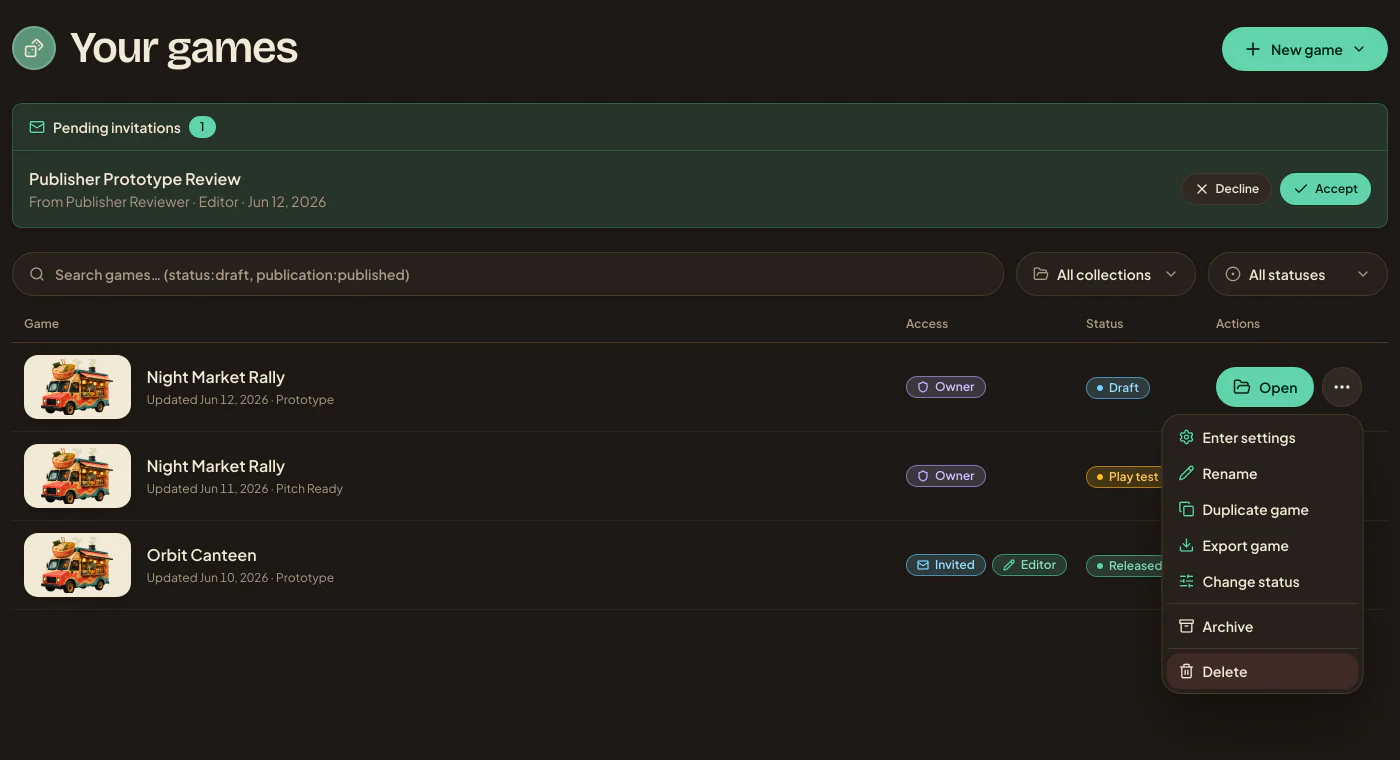
The Studio library shows games you own and games shared with you. Search by name, filter by status, and use collections to keep a larger library manageable.
Try the demo game
New accounts start with a copy of Night Market Rush in the library. While Studio sets it up, its row shows Importing and the background activity card tracks progress. The demo is yours to edit and counts as one of your active games, so archive or delete it if you need the space on your plan.
To import another copy:
- Choose New game → Import from sample library.
- Select Night Market Rush and look through its designs, data, assets, fonts, and variables.
- Open the Import step, leave New game and Whole game selected, and give the copy a unique name.
- Choose Import. Studio opens the finished sample automatically; if opening fails, the activity card offers Retry opening.
Duplicate a game
Open the game’s actions menu and choose Duplicate game. Use this for a major experiment, teaching copy, or reusable starting point. The copy has its own designs and data, so later changes do not flow between the games.
Turn on Invite the same collaborators to copy the editor and viewer invites with the same roles and invite status. This needs Pro. You become the owner of the new game, and a collaborator who no longer has Pro is skipped. Give the copy a clear name before sharing it.
Change a game’s status
Choose Change status in the game’s actions menu, or use Settings.
- Draft is active work.
- Play test marks a game being tried with players.
- Released marks a finished or released game.
- Archived keeps a quiet game in the library without deleting it, and it no longer counts towards your plan's active-game limit. Archive in the actions menu does the same.
Statuses describe the game; they do not lock editing or change access.
Move or back up a game
Use a complete game archive when you need a restorable copy or an account-to-account move. The import, export, and backup guide lists supported files, included content, preview steps, and expiry behaviour. See Import from Component Studio 3 for conversion steps and checks.
Delete safely
Only the game's owner can delete it. Before choosing Delete in the actions menu or Delete game in Settings:
- Export a portable game archive if you may need the editable game later.
- Save final print and playtest files outside Studio.
- Tell anyone using an exported tabletop copy that it will stop updating. Deletion revokes Studio-hosted Tabletop Simulator URLs.
Deletion permanently removes the game and its stored content. Sharing instead requires an authenticated invitation; Studio does not create a public anonymous game link. See Collaboration and sharing.