Organise images and artwork
The Images library is the central place for card art, icons, textures, reference images, and project covers.
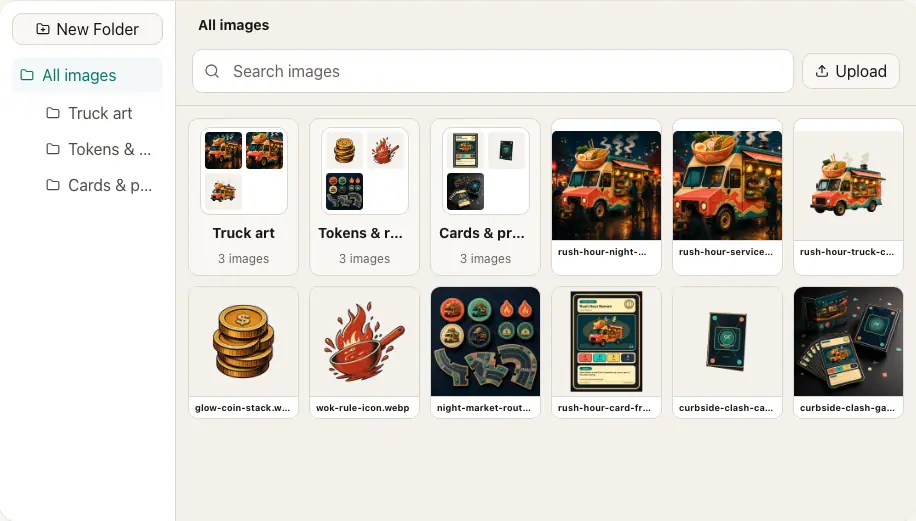 Folders and search keep a growing artwork library manageable.
Upload and processing states
New files pass through upload and processing before they are ready everywhere. A pending or processing image may not yet have all previews. A failed image needs attention before it can be trusted in a design or export.
Keep the page open until the upload finishes. If the connection breaks, check whether the image appears once before retrying so you do not create duplicates.
Organise the library
- Use folders for meaningful groups such as card art, icons, backgrounds, and rulebook images.
- Rename files with their role, not a camera or download identifier.
- Search before uploading an image that may already exist.
- Use bulk move and selection tools for a planned reorganisation.
Crop and appearance
The library can store reusable crop and appearance choices. A particular Designer layer may still have its own framing. Check the real layer after changing a shared image treatment.
Replace an image
Replace is ideal when new artwork should appear everywhere the original is used. Inspect Usage first, then replace and review representative designs and Scratch Pad references.
Delete safely
Deleting an image can leave missing content wherever it was referenced. Before confirming:
- Open Usage.
- Replace or remove each important reference.
- Check exported and hosted workflows that may need a rebuild.
- Delete only when the remaining references are intentionally empty.
For print, prefer artwork with enough resolution at the final physical size. Export QA reports low-resolution images that can be detected from the generated design.