Back up, export, and import a game
A game archive is the portable copy of your work. Use it to move a game between Game Piece Studio accounts or keep a restorable snapshot. It is different from exported card images, a PDF, a dataset file, or the Export Manifest.
Export a game archive
- In Your games, open the game's actions menu and choose Export game.
- Choose Start export.
- Close the window if you like. The export continues in the background, and Studio emails you a download link when it is ready.
- Download the archive before the expiry date and time shown in Studio.
Only one game export can run at a time. Exporting the same unchanged game again before the expiry reuses its ready archive.
The archive contains the game, designs, datasets and rows, variables, fonts, assets and folders, and Scratch Pad. It does not contain collaborators, dataset-cell comments, Designer comment threads or replies, account settings, hosted tabletop exports, or their version history.
Import a game archive
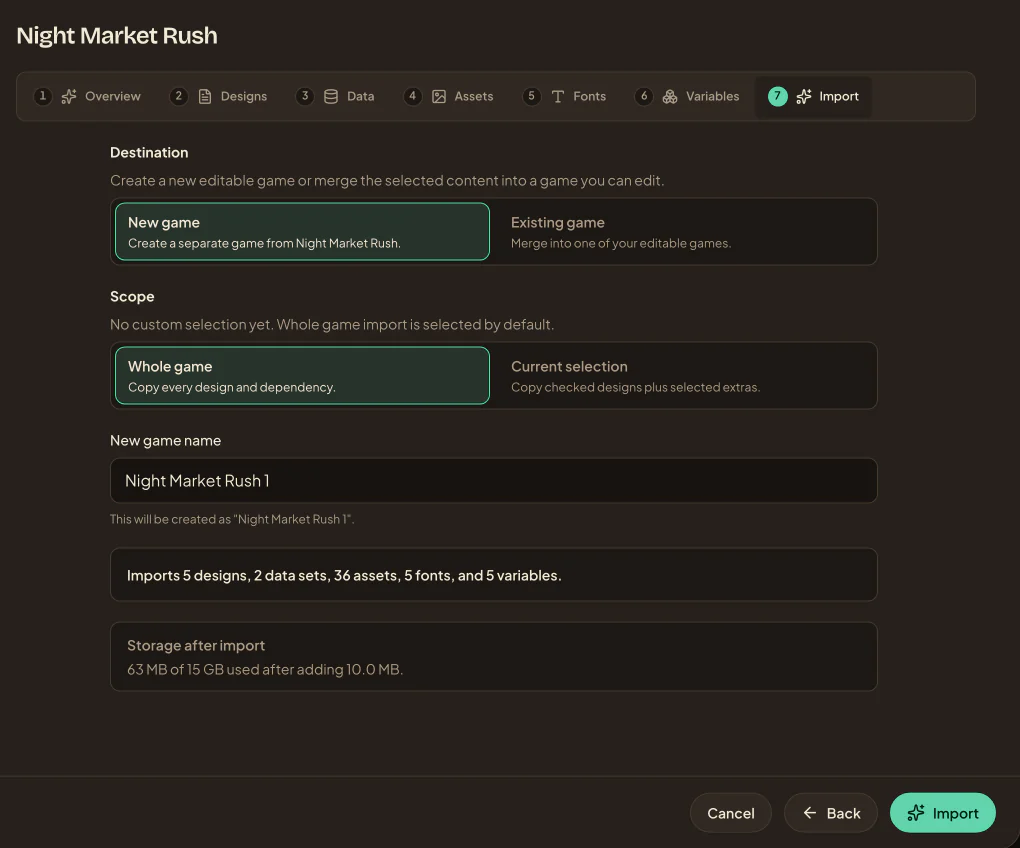
After Studio previews the archive, it uses the same destination and scope options shown here for a sample import.
- Choose New game → Import exported game or CS3.
- Select a
.zipor.gamepiece.ziparchive. - Review its contents, choose Whole game or a current selection, and choose a new or existing destination.
- Check the new game name, required storage, and any warnings, then choose Import.
- Follow the background activity card. Use Retry import after a hand-off failure, or Open when the game is ready.
- Check a representative design, dataset, asset, and Scratch Pad reference before deleting your original copy.
The preview is the checkpoint before creation: confirm the new game name, included content, storage needed, and conversion warnings. The background activity card is the source of truth for progress, retryable problems, and completion.
Importing from Component Studio? Follow the separate Component Studio 3 conversion guide.