Import from Component Studio 3
Game Piece Studio can convert a Component Studio 3 .cs3 or .zip archive into an editable game.
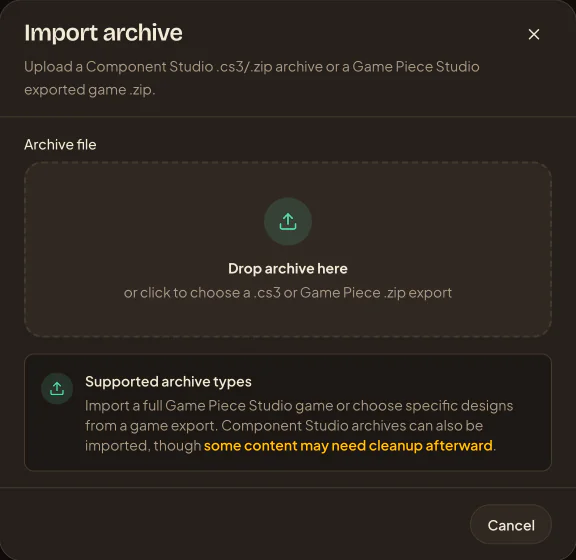
Import the archive
- Choose New game → Import exported game or CS3.
- Select the
.cs3or.ziparchive. - Review the designs, datasets, assets, fonts, variables, and storage shown in the preview.
- On the Import step, choose New game, or Existing game to add the content to a game you can edit, and choose Whole game or Current selection.
- Choose Import. The window closes while the background activity card tracks progress.
If the import fails before it reaches the queue, the activity card offers Retry import. When it finishes, choose Open from the card or open the game from your library.
Check the converted game
- Open each design and compare its size, face, back, fonts, and layer order with the original.
- Check bindings and expressions with several representative dataset rows.
- Check image crops, effects, and any unsupported visual treatments.
- Open each dataset and review its converted columns, options, images, and rows.
- Run Export QA before making files.
Check the conversion
Component Studio 3 and Game Piece Studio use different layout, data, and binding models. Imports are converted rather than pixel-identical, so check and fix bindings, expressions, fonts, image crops, layer order, sizes, and front/back assignments before exporting.