Edit rows and cells in a dataset
The dataset grid behaves like a focused spreadsheet for game pieces. Each row is one piece; each column describes one reusable value.
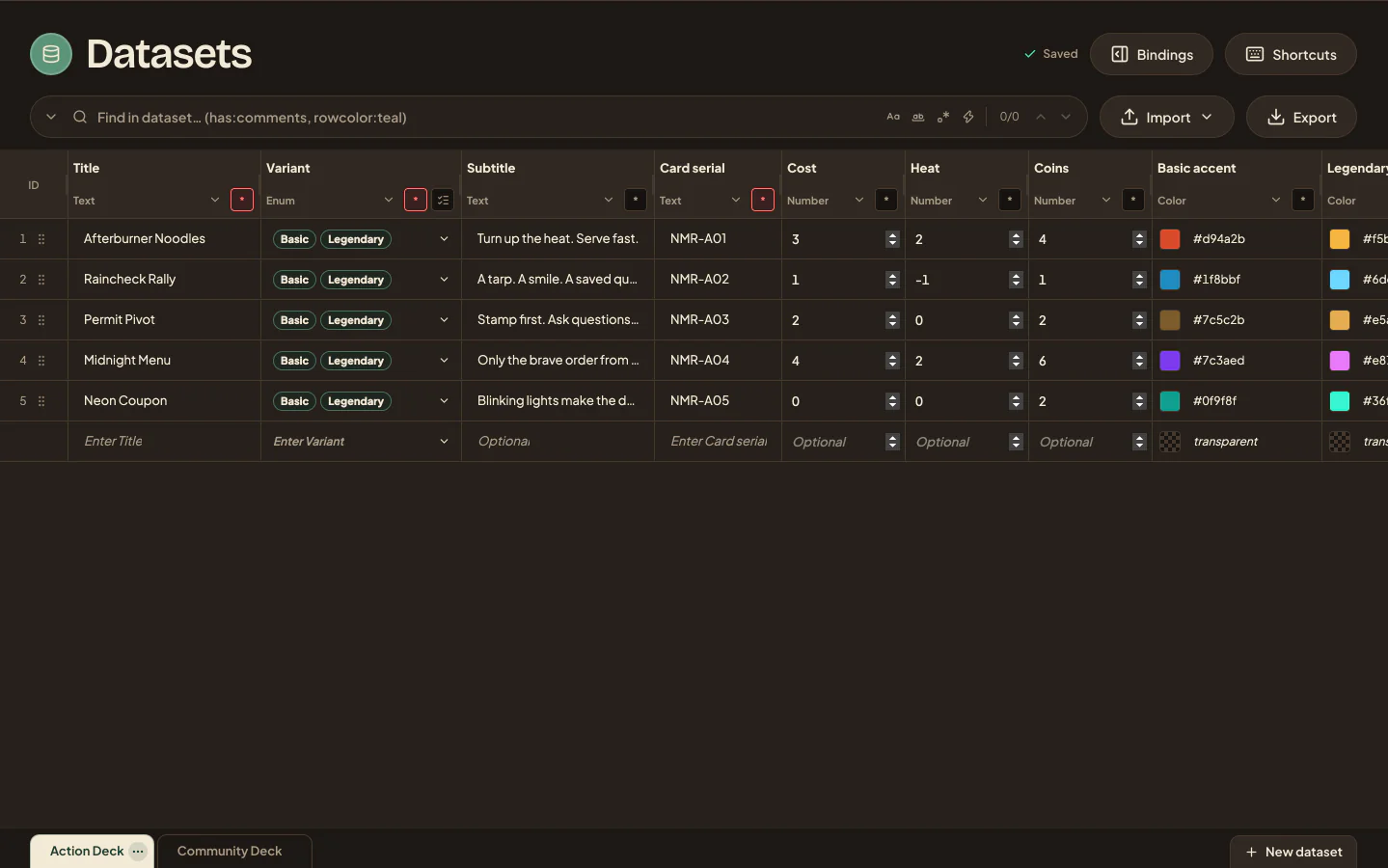
Add and change content
- Select a cell and type, or open its editor for long text, images, Enum values, or colours. From the keyboard, press Enter or F2 on a cell to start editing.
- Press Enter to commit. Focus stays on the cell, so use the arrow keys or Tab to move on. In text, Shift + Enter adds a line break.
- Paste into an open cell editor to fill that one cell; pasted text with line breaks opens the larger text editor. To bring in many rows from a spreadsheet, import it instead.
- Check required values in the new-row draft and review values converted to another type.
Use row colours to mark review state or organise a working set. Duplicate a row when a new piece starts from the same structure. Multi-select rows for actions that apply to the whole selection. On a touch screen, turn on Select rows so taps toggle rows instead of editing, then tap the row count or long-press a selected row for its menu.
The shortcuts panel in the grid is the current source of truth for your operating system. Useful starting points are Ctrl/Cmd + F for search, Ctrl/Cmd + H for replace, and Ctrl/Cmd + Z for undo. Use the row and column context menus for comments, colour, duplicate, move, column width, and delete actions rather than memorising every shortcut; change a column's name, type, and required setting in its header. Without a mouse, Shift + F10 opens the menu for the focused cell or header, and Enter or F2 on a header moves into its controls.
Work with other people
Presence shows who is viewing or editing the dataset. Changes arrive in real time. If two people edit the same value, Studio shows a conflict beside the save status instead of silently combining incompatible changes. Choose Use latest to load the newer version and reapply your change, or Overwrite to keep yours.
Find content quickly
Search highlights matches and lets you move between them. Filters narrow the visible rows without deleting anything. Search and replace operates on the loaded dataset and shows the scope before applying changes. See Search, filter, replace, and comment for exact rules and comments.
Large datasets load in windows of up to 500 rows, and image-heavy datasets may use smaller windows. Actions that need the complete dataset stay unavailable until all required rows have loaded. See Large datasets and validation.