Review designs with comments
Designer comments keep visual feedback beside the layout it describes. Use them for spacing, artwork, typography, bindings, and other design decisions. They do not appear in previews or exported files.
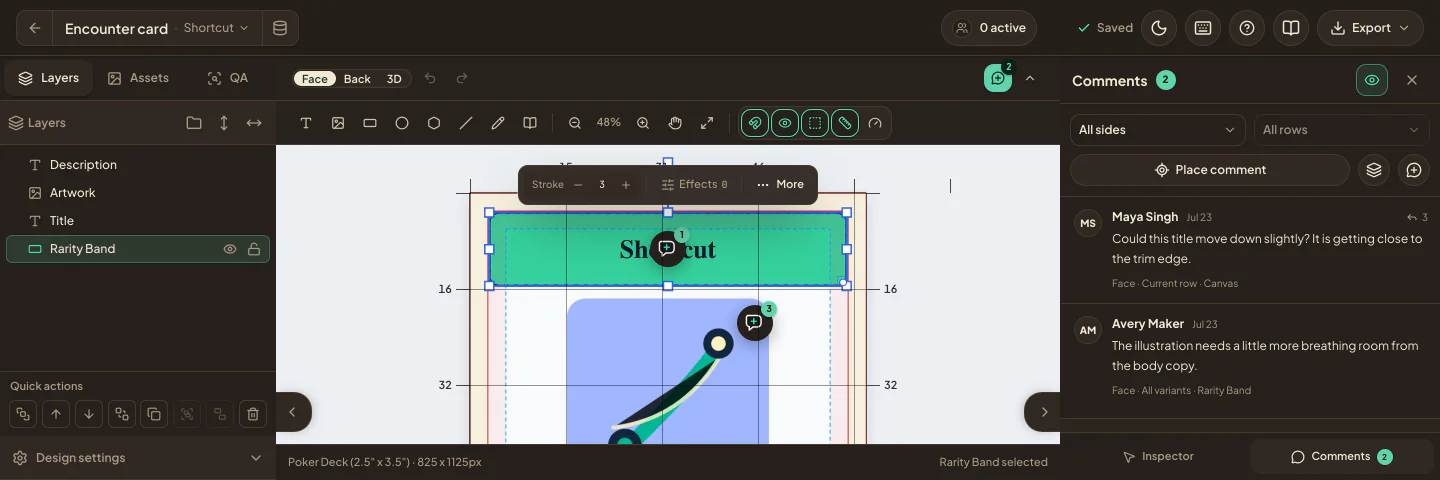
Place a comment
- Open a design and select Comment in the toolbar, or press
C. - Click the point on the design you want to discuss.
- If the design uses a dataset, choose whether the comment applies to the Current row or All variants.
- Describe the change and choose Comment.
You can also right-click the canvas and choose Leave comment here, or, with the keyboard, focus the canvas with nothing selected and press Shift+F10. In the Comments panel, use Place comment to pick a point, the layer button (Comment on followed by the selected layer's name) to keep the marker attached to that layer, or Add a comment about the whole design for general feedback.
A layer comment follows that layer when it moves. A canvas comment stays at its position on that side. If its row or layer is later removed, Studio keeps the thread and marks its original target as detached.
Review a thread
Open the Comments tab beside Inspector in the right-hand sidebar, choose Review comments from the toolbar's comment menu, or press Shift+C. The toolbar and tab badges show the number of open threads.
- Filter comments by side (This side or All sides) and by row (All rows, Current row, or All variants).
- Select a thread or numbered marker to open it. Studio switches to the relevant face or back, selects the row, and frames the comment location.
- Add replies from the marker popover or the full Comments panel.
- Turn off Show comment markers in the toolbar's comment menu or the panel header when you need an unobstructed canvas.
- Mark a finished thread complete. Completed threads move to the Completed section of the panel and can be reopened.
Editors and owners can create comments, reply, and complete threads. Viewers can read them. Authors can edit or delete their own messages, and the game owner can remove any thread when moderation is needed.
Reconnect before making changes
When the realtime connection drops, Studio shows the last synced comments but disables new comments, replies, edits, deletion, and status changes. Keep the design open and wait for the reconnection message; Studio refreshes the threads when it comes back online.
Designer comments are stored with the account data but are not included in a portable game archive. If review history matters during a handoff, finish the discussion or keep the relevant account export before transferring the game.
Next: Share a game with collaborators or check the current piece with QA.